Six default Pixel 11 settings to change, according to a ZDNET reviewer who spent several weeks with the Pixel 11 Pro XL.
The reviewer says several features are turned off by default or need adjustment. The six changes are:
1. **Camera Looks.** This new setting controls how images are processed before capture, including contrast, shadows, tint, sharpness and warmth. The reviewer says images can look over-processed, and that the setting applies to every photo taken afterward. It is found in the camera app's settings icon, in the bottom-right corner.
2. **At a Glance lock screen widgets.** These are off by default. When enabled, they show information such as weather, sports, flights, rideshare and food delivery updates, and fitness data without unlocking the phone. They are configured under Settings > Wallpaper & style > More lock screen settings > Widgets on lock screen.
3. **Display resolution.** The reviewer says the LTPO display is throttled by default to save battery. The change is in Settings > Display > Screen Resolution, moving from "High resolution" (1080 x 2404) to "Max resolution" (1344 x 2992). The reviewer says the difference is most visible in text and fine detail.
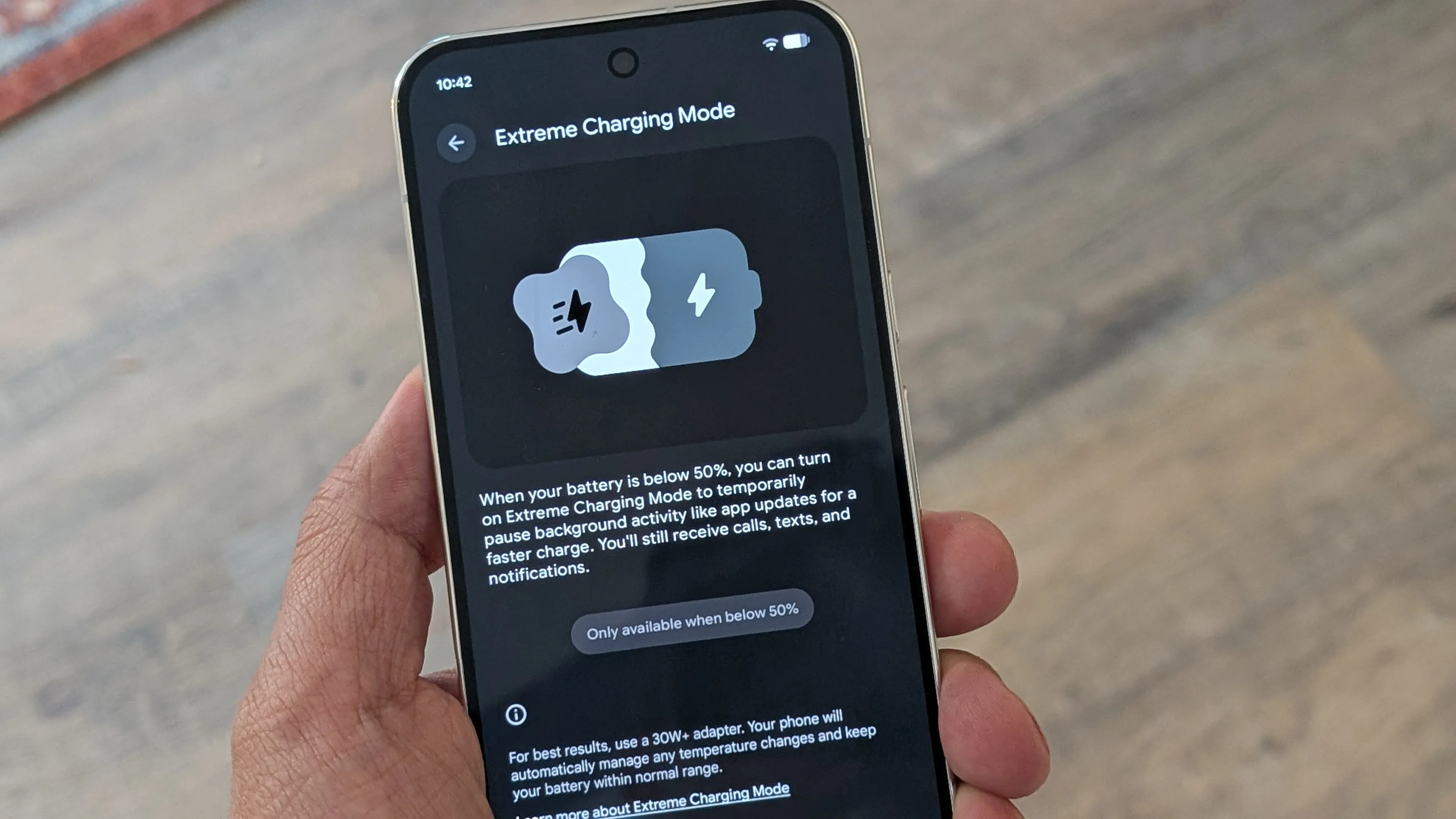
4. **Extreme Charging Mode.** Google says this mode charges the Pixel 11 and 11 Pro to over 50%, and the Pixel 11 Pro XL to 75%, in 30 minutes. The reviewer says that estimate was accurate in their testing. The mode works only at or below 50% battery and must be turned on each time. It is enabled under Settings > Battery & charging > Extreme Charging.
5. **Multicolor LED contact colors.** The rear camera bump LED can signal callers. The reviewer assigned colors to contacts from the contact information screen, which helped them judge incoming calls while the phone was silenced. The setting is labeled HiLight.
6. **Notification History and AI Notification Summaries.** Notification History logs alerts from the last 24 hours, including dismissed ones, and is off by default. AI Notification Summaries turn long or stacked notifications into bullet points, using on-device Gemini Intelligence, and users choose which apps to include. Both are found under Settings > Notifications > Notification history & Notification Summaries.